
- Published on
Three.js Transform Object
- Authors

- Name
- irisjustdoit
- @irisjustdoit
github: https://github.com/iris1114/threejs
demo: https://transform-objects.netlify.app/
1. Four Properties of Transform Object
In Three.js, you can transform objects in the scene using the following four properties:
- position: Used to move the object's position.
- scale: Used to adjust the object's size.
- rotation: Used to rotate the object.
- quaternion: Also used for rotating the object (more mathematical, solves rotation order issues).
2. Position
Position is a three-dimensional vector with x, y, and z properties, defaulting to 0 (indicating the original position):
- x: Controls the object's movement left or right (positive values move right, negative values move left).
- y: Controls the object's movement up or down (positive values move up, negative values move down).
- z: Controls the object's movement forward or backward (positive values move backward, negative values move forward).
Example:
mesh.position.x = 0.7 // Move right by 0.7 units
mesh.position.y = -0.6 // Move down by 0.6 units
mesh.position.z = 1 // Move backward by 1 unit
You can set all three properties at once using the set(x, y, z) method:
mesh.position.set(0.7, -0.6, 1)
Additional functionality: Calculate the length of the vector:
console.log(mesh.position.length()) // Calculate distance from the origin to the object
Calculate the distance to another object:
console.log(mesh.position.distanceTo(camera.position)) // Calculate distance from the object to the camera
3. AxesHelper
When moving objects, it's easy to lose direction. You can use AxesHelper to display the three axes in the scene:
- Red: x-axis
- Green: y-axis
- Blue: z-axis
Example:
const axesHelper = new THREE.AxesHelper(2) // Create an auxiliary axis of length 2 units
scene.add(axesHelper) // Add to the scene
4. Scale
The scale property is used to adjust the size of the object and is also a three-dimensional vector. The default value is 1 (indicating the original size):
- The larger the x, y, and z values, the larger the corresponding axis.
- A value of 0.5 will reduce the object to half its size; a value of 2 will double its size.
Example:
mesh.scale.x = 2 // Double the width
mesh.scale.y = 0.25 // Reduce the height to a quarter
mesh.scale.z = 0.5 // Reduce the depth by half
5. Rotation
The rotation property is of the Euler type, controlling the object's rotation around the x, y, and z axes (angles in radians), with a default value of 0:
- x: Rotation amount around the x-axis in radians.
- y: Rotation amount around the y-axis in radians.
- z: Rotation amount around the z-axis in radians.
Example:
mesh.rotation.x = Math.PI * 0.25 // Rotate 45 degrees around the x-axis (1/4 circle)
mesh.rotation.y = Math.PI * 0.25 // Rotate 45 degrees around the y-axis
Note: Rotation order The default rotation order in Three.js is x -> y -> z. If the order causes strange behavior, you can modify it using reorder():
mesh.rotation.reorder('YXZ')
6. lookAt (Make the object face a target)
The lookAt() method allows the object's -z axis to face a specified target.
Example: Make the camera look at (0, -1, 0):
camera.lookAt(new THREE.Vector3(0, -1, 0))
Make the camera look at the position of a specified object:
camera.lookAt(scene.position)
camera.lookAt(group.position)
camera.lookAt(cube1.position)
7. Simultaneous Transformations
You can adjust position, size, and rotation simultaneously, and the order will not affect the result. For example:
mesh.position.set(0.7, -0.6, 1) // Set position
mesh.scale.set(2, 0.25, 0.5) // Set size
mesh.rotation.set(Math.PI * 0.25, Math.PI * 0.25, 0) // Set rotation
8. Group
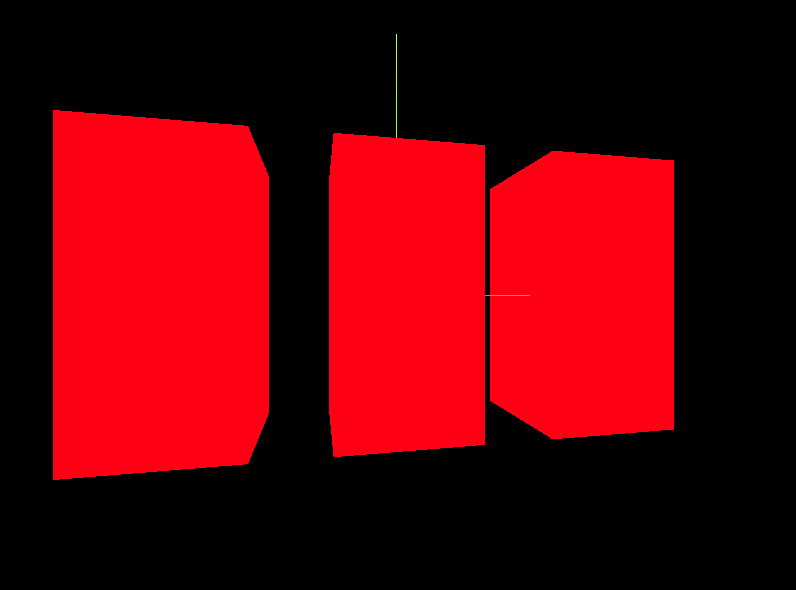
In addition to setting transformations for individual objects, when the scene contains multiple objects, you can group them for overall transformation operations. A group is of the Group type.
Example: Create a group containing three cubes:
const group = new THREE.Group() // Create a group
group.scale.y = 2 // Scale the entire group
group.rotation.y = 0.2 // Rotate the entire group
scene.add(group) // Add the group to the scene

const cube1 = new THREE.Mesh(
  new THREE.BoxGeometry(1, 1, 1),
  new THREE.MeshBasicMaterial({ color: '0xff0000' })
)
cube1.position.x = -1.5 // Move the first cube
group.add(cube1) // Add to the group

const cube2 = new THREE.Mesh(
  new THREE.BoxGeometry(1, 1, 1),
  new THREE.MeshBasicMaterial({ color: 0x00ff00 })
)
group.add(cube2) // The second cube remains at the center

const cube3 = new THREE.Mesh(
  new THREE.BoxGeometry(1, 1, 1),
  new THREE.MeshBasicMaterial({ color: 0x0000ff })
)
cube3.position.x = 1.5 // Move the third cube
group.add(cube3) // Add to the group
Thus, any transformation applied to the group (such as rotation or scale) will simultaneously affect all objects within the group.
Others
This document records how to use the basic transformation functions of Three.js to manipulate objects in a 3D scene, from simple movements to group operations.
// To do: Research quaternion later